

📱 Android Mobile
Follow these steps to install the TaVo TV app on your Android phone:
Go to this link: 👉 https://bit.ly/8938574
Tap Download.
⚠️ Important Note: You may see a warning saying “This file may be harmful.”
👉 This is normal for apps downloaded outside the Google Play Store. Tap OK / Continue to proceed — the file is safe.
3. Once the file finishes downloading, open it (Give it some time – up to 3 minutes).
If prompted, allow installs from Unknown Sources (this option may appear under your phone’s security settings).
Tap Install.
Open the TaVo TV app.
Enter the login details you received from us.
✅ That’s it! You’re ready to enjoy streaming with TaVo TV.
🛠 Fire TV Stick
Follow these steps to install the TaVo TV app on your Amazon Fire Stick:
From your Fire Stick home screen, go to Find → Search.
Type in Downloader and install the Downloader app (orange icon).
Open the Downloader app.
In the URL/code field, enter 👉 8938574 and press Go.
(This code links directly to our APK download page.)The TaVo TV app will begin downloading.
Once the download finishes, select Install.
After installation, open the TaVo TV app.
Enter the login details you received from us.
✅ You’re ready to enjoy streaming with TaVo TV on your Fire Stick!
🍏 iOS (iPhone / iPad)
Follow these steps to set up TaVo TV on your iOS device:
Open the App Store on your iPhone or iPad.
Search for and install a compatible IPTV player app — we recommend IPTV Smarters Lite.
Once installed, open the IPTV Smarters Lite app.
Select “Login with Xtream Codes API.”
Enter your Username, Password, and m3u URL.
Save your login and proceed.
✅ That’s it! You’re ready to stream TaVo TV on your iOS device.
📺 Smart TV (Samsung / LG)
Follow these steps to set up TaVo TV on your Smart TV:
On your Smart TV, open the App Store (Samsung Store or LG Content Store).
Search for and install a compatible IPTV player app — we recommend IPTV Smarters Lite.
Launch the IPTV Smarters Lite app.
Select “Login with Xtream Codes API.”
Enter the Username, Password, and URL provided in your Welcome Email.
Save your login and proceed.
✅ That’s it! You’re ready to stream TaVo TV on your Smart TV.
📦 MAG Box Setup
MAG boxes use a portal URL instead of a username/password login. Follow these steps to set up TaVo on your MAG device:
🔹 Step 1: Connect Your MAG Box
Plug your MAG box into your TV with HDMI.
Connect it to the internet (Wi-Fi or Ethernet).
Power it on.
🔹 Step 2: Get Your MAC Address
On the MAG home screen, go to Settings → System Information.
Find and write down your MAC Address (looks like
00:1A:79:XX:XX:XX).This is required to activate your service.
🔹 Step 3: Send Us Your MAC Address
Message us on Telegram (@YourTelegramHandle).
Provide your MAC Address and request MAG activation.
We’ll register your MAC address and send you the correct Portal URL.
🔹 Step 4: Enter the Portal URL
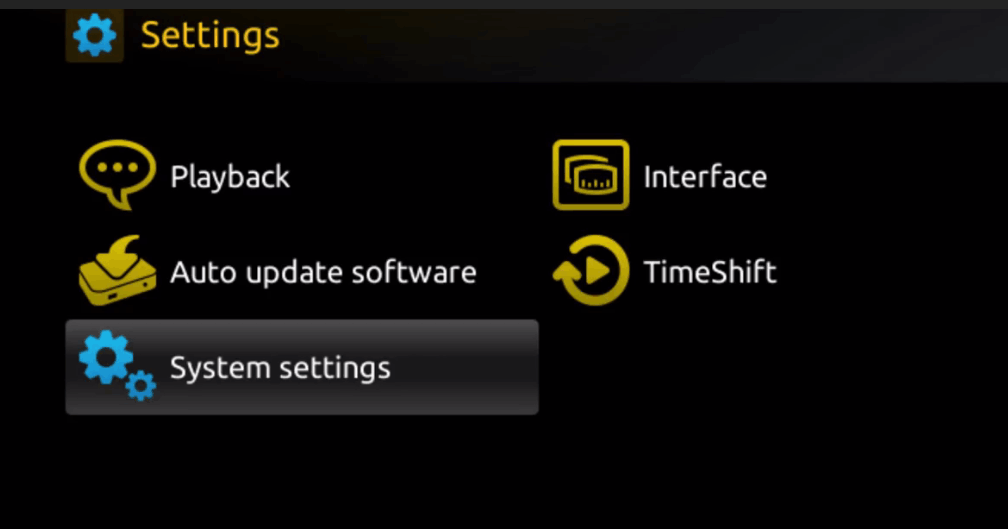
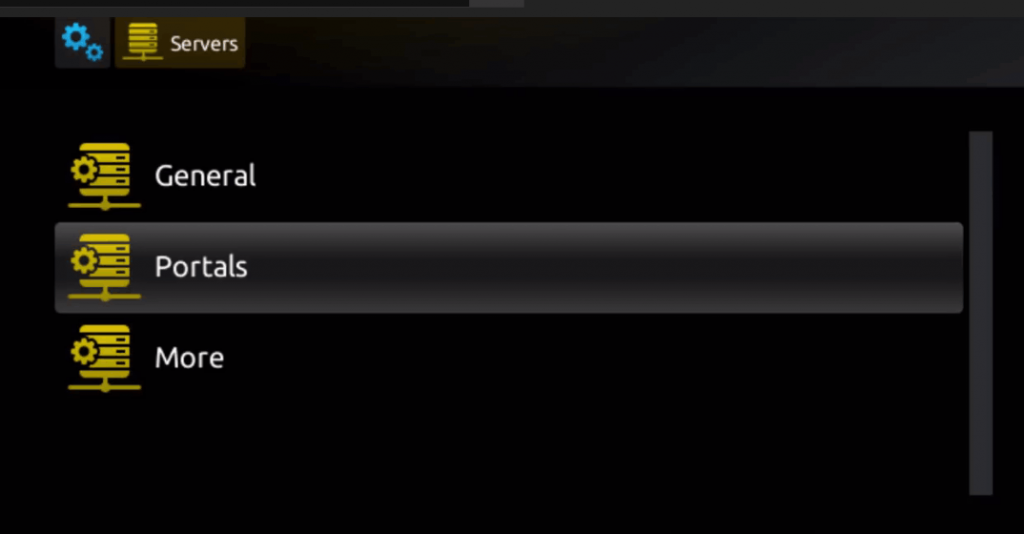
On your MAG box, go to Settings → Servers → Portals.
In the Portal 1 URL field, enter the link we provide (example):
(Use the exact URL we send you — do not change it).
Save the settings and restart your MAG box.
🔹 Step 5: Enjoy Streaming
When your MAG box restarts, it will load the TaVo portal automatically.
Navigate to Live TV, Movies, or Series to start watching.
✅ That’s it — once your MAC is activated and the portal is set, you’ll have full access on your MAG device.
⚠️ Important:
Each MAG box has a unique MAC address. If you change devices, you’ll need to provide us with the new MAC for activation.
Do not share your portal URL — it only works with your registered MAC.


📖 Use Parental Control To Personalize Your TaVo
Parental Control isn’t just for blocking content — it’s the easiest way to organize, simplify, and personalize your TaVo experience. With a few quick steps, you can hide categories you don’t watch, keep kids safe, and create a menu that feels custom-made for you.
✨ Why Use Parental Control?
🚫 Hide categories you don’t want to see (like Adult)
🔒 Keep kids from accessing locked content
✅ Create a clean, organized menu
🎯 Personalize TaVo to match your viewing style
🔒 Step 1: Set Up Parental Control
Open the TaVo TV app on your device (Firestick, Android, Smart TV, etc.).
Go to Settings (⚙️).
Select Parental Control / Lock.
Create a 4-digit PIN and confirm it.
✔️ Done! You’re ready to start hiding categories.
🚫 Step 2: Hide Categories
Open your Categories/Groups list (Sports, News, Kids, Movies, Adult).
Highlight the category you want to hide (example: Adult).
Select Lock / Hide Category.
👉 The category will now disappear from the menu unless unlocked with your PIN.
🔑 Step 3: Unlock a Hidden Category
Go to Parental Control settings.
Enter your PIN.
Toggle the category back to Visible/Unlocked.
💡 Tips for Personalizing TaVo
Change your PIN often for safety.
Lock multiple categories to simplify your menu.
Test across devices (each TV or phone may store locks separately).
Use this feature to create a clean, organized, personalized TaVo menu.
🎉 Wrap-Up
Parental Control makes it easy to clean up, organize, and personalize your TaVo. Whether you’re hiding unwanted categories or locking content for kids, you’re in full control of your streaming experience.
Need help? 👉 [Contact Support]